Transaction Held
1.# 📘 Compliance – Transactions Held
🧾 Overview
The Transactions Held sub-module provides a dedicated space for managing transactions that have been suspended or flagged due to compliance-related issues. These transactions require manual review or clearance before they can proceed to payout.
Typical reasons for being held include:
- Compliance rule violations
- AML (Anti-Money Laundering) flags
- Incomplete or failed validations
- Policy breaches or operational triggers
This module enables compliance and operations teams to:
- View all held transactions in one place
- Investigate root causes
- Take appropriate action (e.g., escalate, approve, or return to processing)
📊 Data Table View
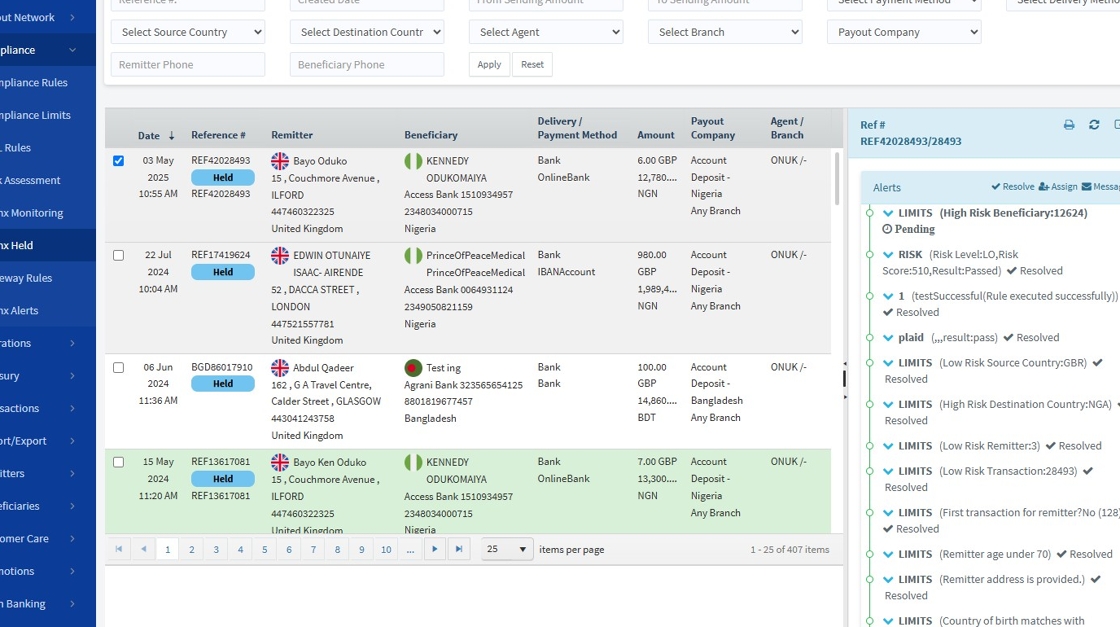
Once filters are applied, held transactions are displayed in a structured table. Each row represents a held transaction, including the following fields:
| Column | Description |
|---|---|
| Date | Timestamp of when the transaction was created |
| Reference # | Unique ID to trace or reference the transaction |
| Remitter | Full name, phone, and address of the sender |
| Beneficiary | Receiver’s name, bank details, account number, and phone |
| Delivery / Payment Method | Combined view of how money was paid and how it will be delivered |
| Amount | Total transaction value in both source and destination currencies |
| Payout Company | The payout partner or financial institution handling the delivery |
| Agent / Branch | The remitter’s agent and their specific location |
 |
🖥️ Monitoring Sidebar
When a transaction is selected in the list, a sidebar panel opens on the right, offering detailed insight into the selected transaction. This includes:
| Section | Description |
|---|---|
| Transaction Metadata | Full reference ID, date, status, and origin |
| Remitter Details | Name, phone number, ID, and location |
| Beneficiary Details | Name, account number, bank, contact info |
| Compliance Flags | Any triggered rules, risk scores, or document verification issues |
| Comments / Notes | Internal remarks added by previous reviewers |
| Documents | Uploaded KYC, proof of funds, or ID images |
This sidebar supports manual review by providing all relevant context in one view.
2.

🔁 Manual Action – Add to Processing
After compliance checks have been completed and a transaction is cleared:
- The compliance officer or authorized team member can manually add the transaction back into the processing queue.
- This removes the “Held” status and resumes the payout workflow.
This action is available via:
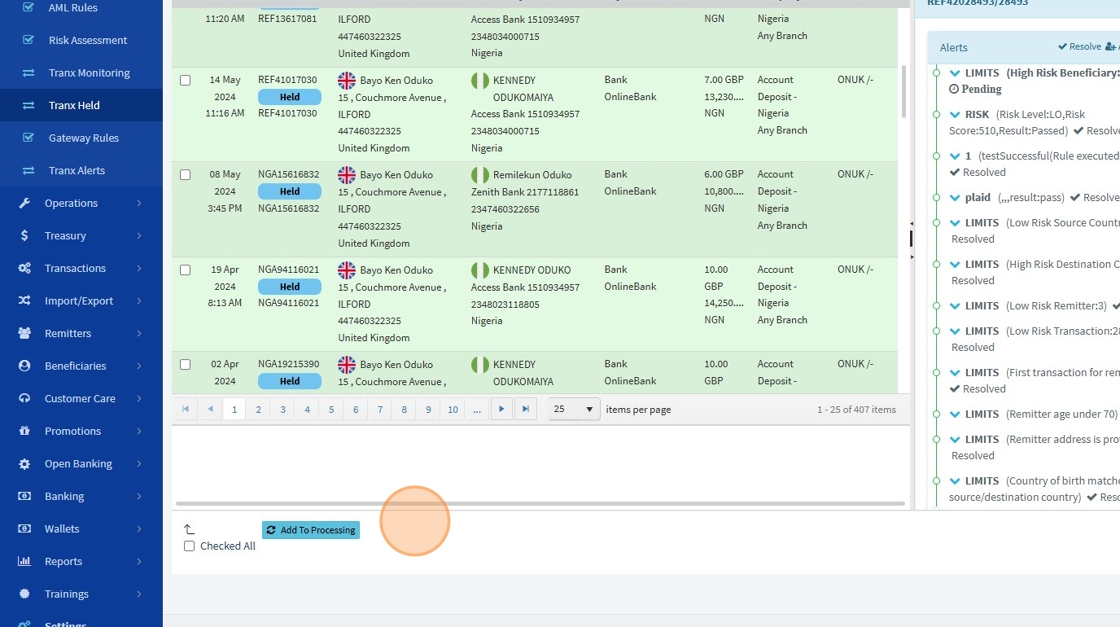
- “Add to Processing” button within the sidebar, or
- Bulk action tools in the transaction table (if enabled)
✅ This ensures that only cleared transactions proceed to disbursement — preserving both compliance integrity and operational efficiency.
3. Click "Add To Processing"