Payment Gateway Settings
Overview
The Payment Gateway Settings sub-module allows administrators to control which payment methods (like debit card, credit card, and online bank transfer) are available for different countries. This is useful for meeting local financial rules, handling regional payment integrations, and choosing the best payment providers (e.g., Plaid).
It is mainly used to:
- ✅ Follow legal payment regulations in each country
- ✅ Manage what payment methods are allowed by region
- ✅ Choose and assign payment providers (like Plaid)
1.
🏢 Tenant & Country Scope
At the top of the module, you will see:
- Tenant – The name of the current tenant or environment (e.g.,
Default Tenant) - Country Settings Table – A list showing which countries have payment methods enabled
This table is the main interface. It shows all the countries that currently have payment gateway settings configured.
Columns Explained
| Column | Description |
|---|---|
| Country | The country name (e.g., Belgium, United Kingdom) |
| Debit Card | Shows whether debit card payments are allowed (✓ or -) |
| Credit Card | Shows whether credit card payments are allowed (✓ or -) |
| Online Bank Transfer | Shows if online transfers are enabled (e.g., via Plaid) |
| Action | Button to edit settings for each country |

✅ What is Plaid?
Plaid is a financial technology service that helps apps connect to users’ bank accounts securely. It is commonly used for:
- 🏦 Online bank transfers
- ✅ Account verification
- 💰 Balance checks
- 📜 Transaction history access
In this module, Plaid is configured as the provider for online bank transfers, meaning it helps users move money directly from their bank accounts in a secure and compliant way.
2. ## How to Enable or Edit Settings for a Country
Each row in the table has an ⚙ button.
When you click it:
- You can edit the country’s gateway provider for each payment method
- You can also choose a default provider (e.g., set "Plaid" for bank transfers)

3. - You can delete a country’s gateway configuration by clicking 🗑
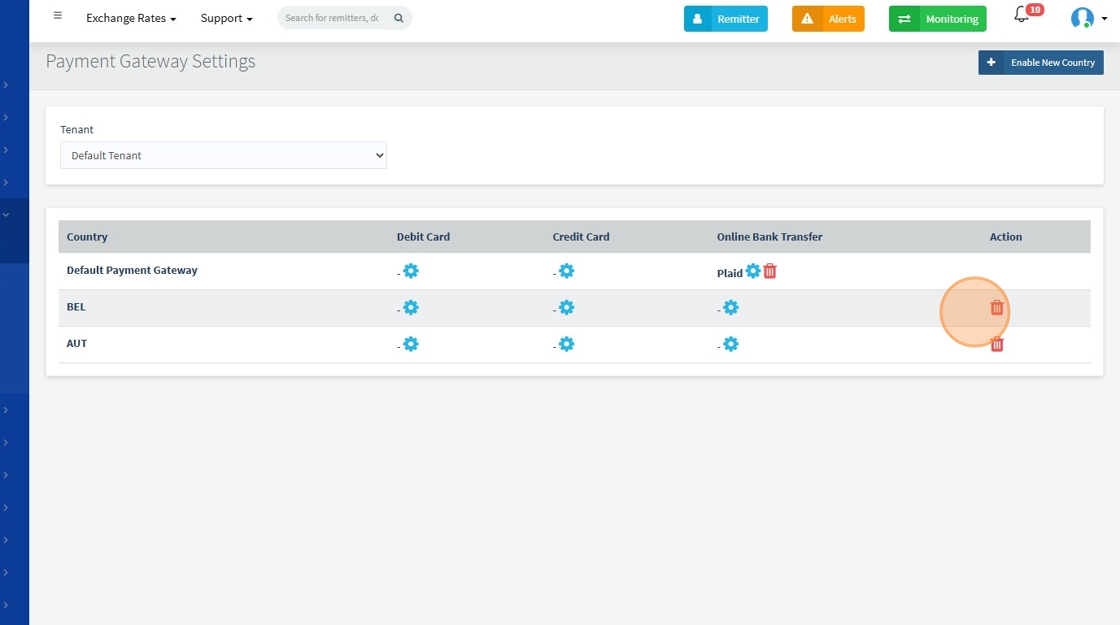
4.Click ➕ to Enable a New Country for Payment Gateway Settings

5.
Below the main table, there is a section for enabling more countries.
Steps:
- You’ll see a list of all available countries that are not yet configured.
- Each country has an Enable button next to it.
When you click Enable:
- That country is added to the main settings table
- You can now edit its payment methods and provider settings

6. Click "Save changes"
