Push Options
✅ Purpose
The Push API Options sub-module allows administrators to configure and fine-tune the behavior of outbound (push-based) API integrations with payout partners. It determines whether API requests are sent to the test (UAT) or production environment and links these settings to the specific payout partners previously configured under Manage Partner API Settings.
This sub-module is crucial for toggling between testing and live operations without needing to reconfigure or redeploy integration logic.
🔰 Key Elements
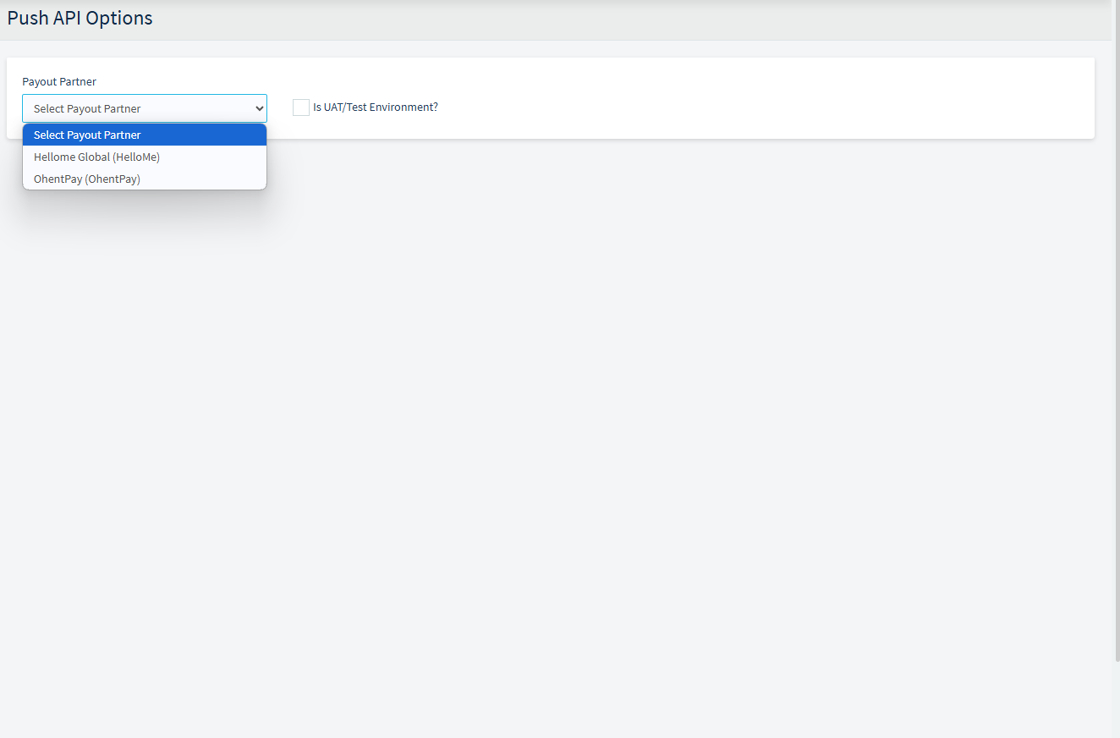
1. Payout Partner Selector
- A dropdown field that lists all registered payout partners.
- Admins select the partner for which they wish to configure push API behavior.
- This links directly with previously configured entries in Manage Partner API Settings, ensuring consistency.
2. UAT/Test Environment Toggle
- A radio button that allows the admin to activate or deactivate UAT/Test mode.
- Checked: API requests will be sent to the UAT/test environment (UAT Base URL, credentials, etc.).
- Unchecked: Requests go to the production/live environment.
This setting is applied dynamically and is critical for managing safe deployment, especially when:
- Testing new payout formats or logic
- Partner systems are still in the integration phase
- Developers or QA teams are validating before go-live
1.

2. The Below Image shows sample partners available for selections
3. Once a partner is selected from the dropdown, the system displays several interactive tools grouped under Available Methods. These tools help administrators or operations staff query key partner-related data via API, such as balance, exchange rates, delivery banks, and transaction statuses.

🔹 Transaction Details
- Reference Number Input: Allows you to input a specific transaction reference.
- Transaction Status Button: When clicked, it fetches and displays the current status of the referenced transaction.
🔹 Partner Details
- Partner Balance Field: Retrieves the current account balance of the selected payout partner using their configured API settings.
🔹 Exchange Rates
- Sending Country: Dropdown to select the country where the transaction originates.
- Receiving Country: Dropdown to select the destination country for the transaction.
- Submit Button: Queries the partner’s API to fetch applicable exchange rates between the selected countries.
🔹 Partner Network
- Receiving Country: Dropdown to choose a country.
- Delivery Banks Field: Displays a list of delivery/payout banks available in the selected country, as returned by the partner API.
API Result → Partner Balance (Bottom Section)
- Status: Indicates whether the API call was successful (
1typically means success). - Balance: Displays the returned balance for the selected partner.
Example:2060657.45indicates the partner currently holds this amount for processing payouts.
✅ Summary
This interface allows staff to interact with multiple APIs tied to the selected payout partner, enabling:
- Transaction lookups
- Live balance checks
- Exchange rate inquiries
- Delivery bank network discovery
🔰 Usage Scenarios
🔄 Switching Between Environments
- While testing payouts, set UAT/Test = Yes to avoid sending live funds.
- After successful testing and go-live approval, uncheck to switch to production.
🧪 Partner Testing Period
- New payout partners may remain in UAT mode for weeks.
- This allows continuous testing without affecting live customers.
🔒 Secure and Controlled Integration
- Prevents accidental live submissions during development or staging.
- Encourages responsible deployment by clearly separating test and live configurations.
📝 Example Workflow
- Admin sets up API settings for a new partner in Manage Partner API Settings, providing both UAT and production details.
- Admin creates a custom export format for that partner in Manage Payout Export Formats.
- In Push API Options, the admin selects the partner and enables UAT/Test Environment.
- Test transactions are pushed to the UAT environment only.
- After successful verification, the admin returns to Push API Options and disables UAT/Test mode, enabling live payout pushes.