Manage Tranx
Overview
The Transaction Management Module is designed to handle the complete lifecycle of customer transactions — starting from creation and compliance review all the way through to payout or cancellation.
This module ensures that:
- Every transaction passes through the necessary risk and compliance checks
- Actions taken on a transaction are fully traceable, including comments, status changes, and history logs
- Authorized personnel can view, manage, monitor, or manually intervene in any transaction when necessary
🔍 Centralized View of All Transactions
One of the core benefits of this module is that it provides a single place to view all transactions, regardless of their current status.
This includes transactions that are:
- Pending
- verifying
- review
- Processing
- ready
- Paid
- Held
- Cancelled
1.
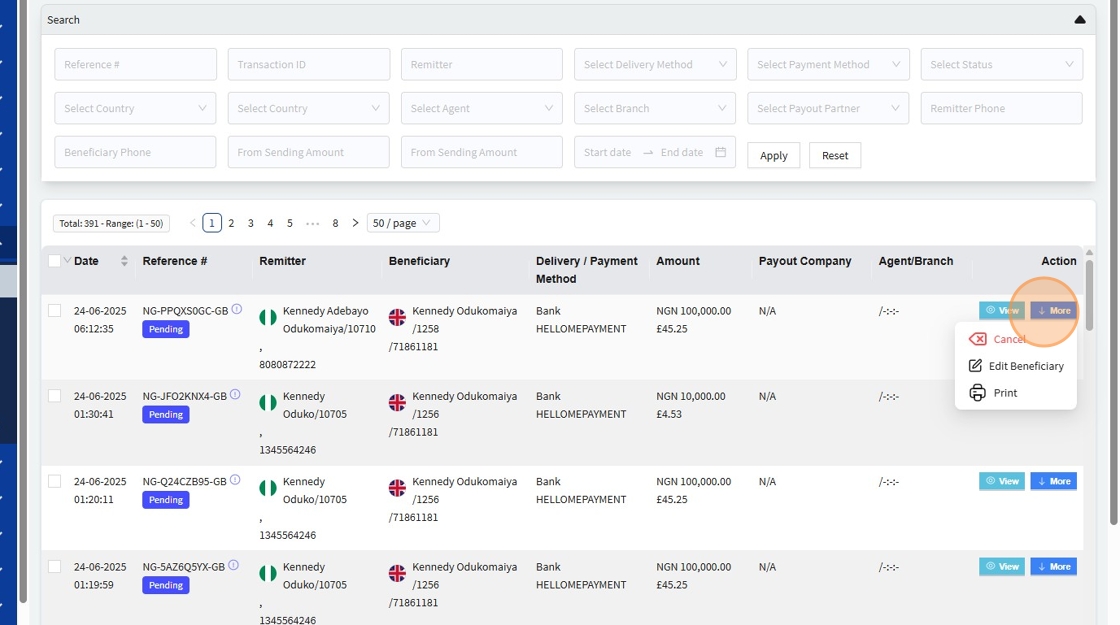
This is the central hub for viewing, searching, and managing all transactions initiated by customers across the platform.
Filters
| Filter Type | Description |
|---|---|
| Reference ID | Search by the unique transaction reference |
| Agent | Filter by the agent who initiated the transaction |
| Sending Country | Filter based on the origin country |
| Receiving Country | Filter based on the destination country |
| Status | Filter by transaction status (e.g., Pending, Paid, Cancelled) |
| Payout Company | Filter transactions by assigned payout partner |
| Date Range | Filter by creation or update date |
| Amount Range | Search within specific amount brackets |
| Currency | Filter by transaction currency |
| Risk Score | Search based on risk rating from compliance |
1. Table Columns
| Column Name | Description |
|---|---|
| Date | The date the transaction was initiated or last updated |
| Reference # | A unique system-generated reference identifier for the transaction |
| Remitter | The sender or originator of the funds |
| Beneficiary | The intended recipient of the funds |
| Delivery / Payment Method | Indicates how the funds will be delivered (e.g., bank transfer, mobile wallet, cash pickup) |
| Amount | The total amount of the transaction, including currency |
| Payout Company | The financial institution or partner responsible for disbursing the funds |
| Agent / Branch | The field agent or branch that initiated or handled the transaction |
| Action | Available management options (e.g., View, Forward, Cancel, Mark as Paid) |
🔧 Action Column Behavior
The "Action" column in the transaction table provides a set of contextual tools for managing individual transactions efficiently.
These options become visible when the user hovers over the "More" button, which is a blue dropdown control located at the far-right end of each transaction row.
The purpose is to allow authorized users to perform key actions quickly without needing to open a separate detail page — streamlining daily transaction operations.
2. When User clicks "View 👁️" it shows more details about the transaction and details like.

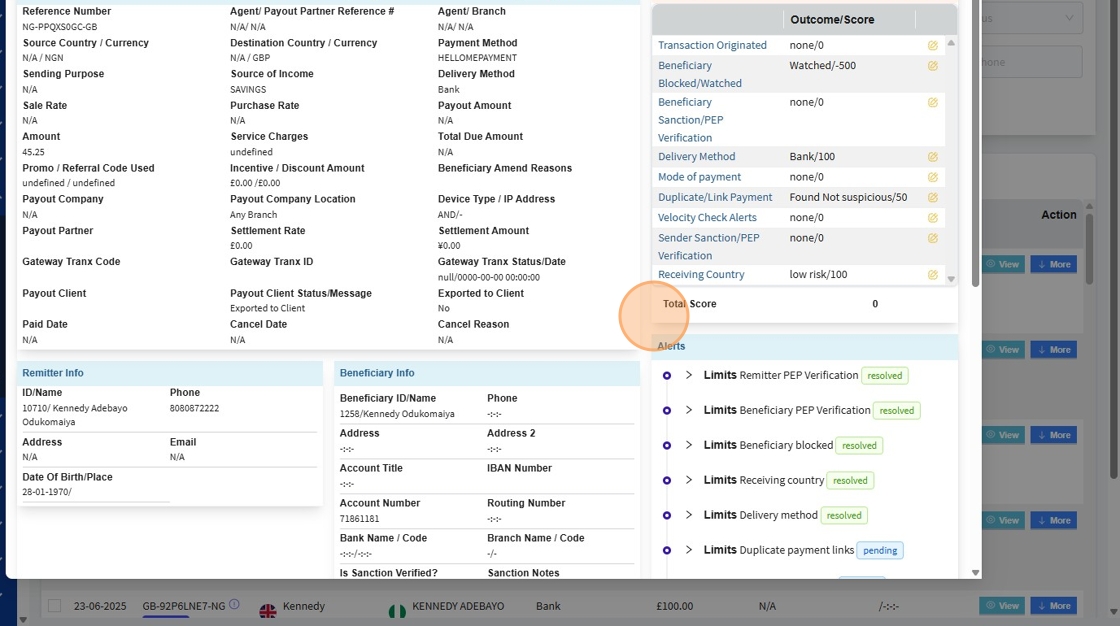
After the user clicks on "View", a detailed page opens displaying comprehensive information about the selected transaction.
🧾 Current Transaction Data
At the top, the page is divided into labeled sections that display full transaction metadata, including:
📄 Transaction Details Overview
The Transaction Details page provides a comprehensive view of an individual transaction, consolidating all key data in one place. This interface is designed for use by Compliance, Finance, and Admin teams to investigate, update, or finalize transactions.
🧾 Current Transaction Data
At the top, the page is divided into labeled sections that display full transaction metadata, including:
| Section | Description |
|---|---|
| Transaction Info | General information such as reference number, status, creation date, purpose of funds, source of funds, and channel (e.g., ONLINEBANK). |
| Sending Details | Shows the country and currency the transaction was sent from, sender’s funding source, sending amount, and associated agent/branch. |
| Receiving Details | Indicates the destination country and currency, payout method, receiving amount, and expected payout channel or partner. |
| Remittance Options | Information about how the remittance should be processed and settled (e.g., mode of payout, account details, etc.). |
👤 Remitter Information
Located in the left center of the screen, this section displays the sender’s personal and contact details, such as:
- Full name
- Customer ID or reference
- Phone number (if applicable)
- Associated branch or agent ID
- Customer type and ID verification status
This helps with verifying identity, assessing transaction legitimacy, and cross-referencing with KYC documents.
🎯 Beneficiary Information
Beside the remitter block is a detailed view of the beneficiary. It includes:
- Full name
- Bank or financial institution
- Account number
- Address and contact info (if collected)
- Method of payout (e.g., bank transfer, mobile money)
This is critical for ensuring the correctness of delivery and for compliance checks on high-risk beneficiaries or blacklisted accounts.
🛡️ Risk Assessment Score
On the right-hand side, a compliance-focused scoring box evaluates the transaction using predefined risk parameters. This typically includes:
| Risk Metric | Description |
|---|---|
| Transaction Country Risk | Evaluates origin and destination country risk levels |
| Transaction Amount Risk | Assesses whether the transaction is unusually large or structured |
| Customer Profile Risk | Based on remitter's historical behavior or PEP/sanctions status |
| Velocity Risk | Measures how frequently this customer has transacted recently |
| Purpose/Source of Funds Risk | Looks for red flags in declared reasons or documentation |
Each metric is scored and possibly color-coded (green, yellow, red) to guide compliance decisions.
🧠 Note: High risk scores typically trigger manual reviews or alerts.
Current Transaction Status
Directly below the risk assessment section is a vertical list of automated or manual alerts triggered by the transaction. Each alert shows:
- A description of the issue
- A status (e.g., “pending”, "paid", )
- Associated user or team action (e.g., comments, resolution)
🚨 Compliance Related alerts
Alerts can include:
- Transaction inconsistencies
- Blocked country or individual match
- Document expiry or missing info
These help compliance officers prioritize cases for further investigation.
💬 Tabs: Data | Comments | Action
Located beneath the alerts and history, these tabs allow additional operations:
- Data: Quick view/edit of metadata fields
- Comments: Internal notes between team members
- Action: Contextual tools (e.g., approve, reject, escalate)
📚 Transaction History
At the bottom, the Transaction History log displays a timeline of all actions performed on this transaction, including:
- Status changes (e.g., from “Pending” → “Forwarded”)
- Comments from compliance or finance officers
- System events (e.g., risk score updates, auto-alerts)
- User actions (with timestamps and usernames)
- IP logs and interface-level metadata (if enabled)
This ensures auditability and traceability, which are vital for financial regulatory reporting and internal reviews.